
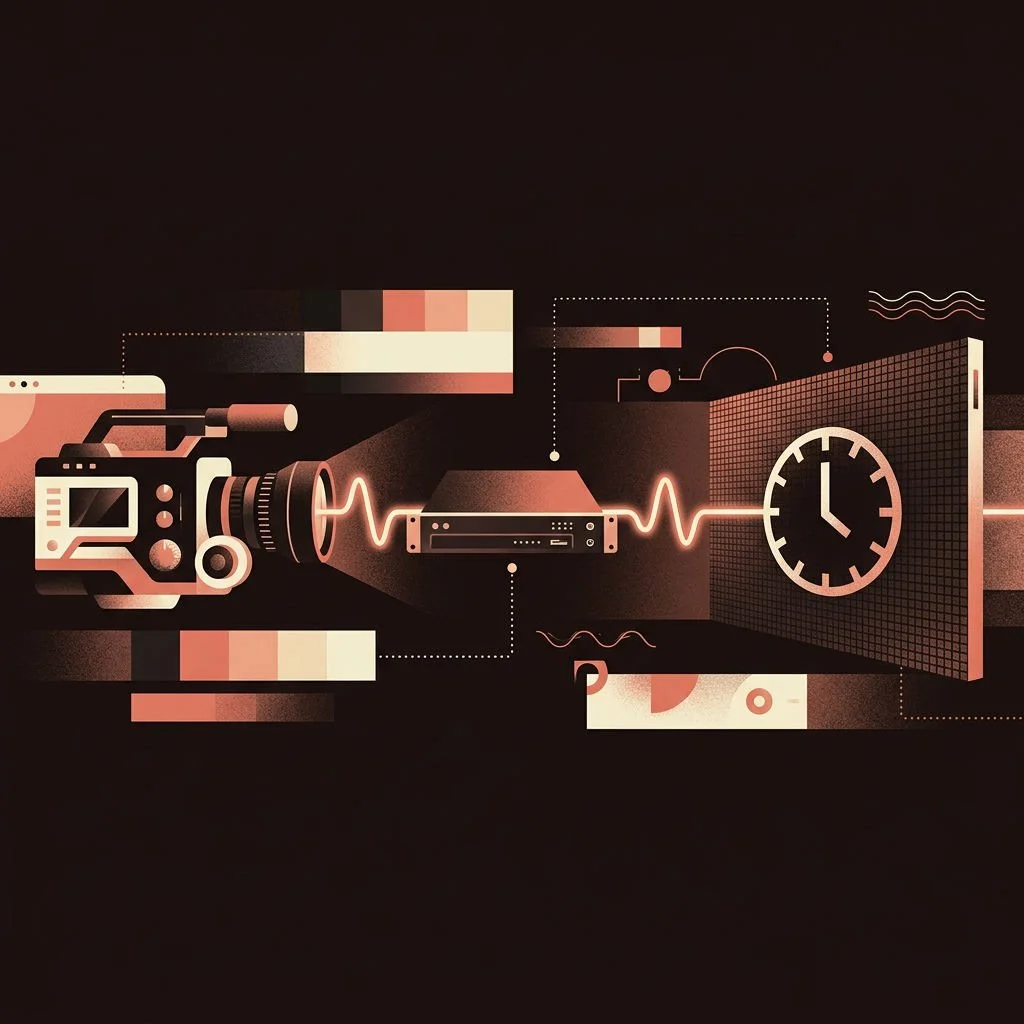
People on a stage see a continuous image on an LED wall. A camera does not. It takes a series of short exposures, and the wall is refreshing in its own rhythm. When the two rhythms do not line up, the footage shows banding, flicker or rolling dark bars that nobody saw in the room.
Why it happens
Each LED row is lit in short pulses many times a second. A camera shutter opens for a moment and catches part of those pulses. If the exposure falls at a different point in the wall's cycle each frame, brightness changes from frame to frame.
Genlock: one clock for everything
Genlock sends a shared timing signal to the camera, the render machine and the wall's processor, so frames start together. Once they share a clock, the camera's exposure always lands at the same point in the wall's cycle, and the flicker stops. It also keeps the tracked camera, the engine render and the picture on the wall from drifting apart.
Settings that matter
Frame rate. Choose the frame rate for the shoot first, and set the whole chain to it.
Shutter angle. Very short exposures are more likely to catch the wall's pulses. Test the shutter you plan to use.
Refresh rate. A higher wall refresh rate gives more margin. Check what the processor supports.
Rolling or global shutter. Cameras that read the sensor line by line can show bars without sync. Know your camera.
Colour is a separate problem
An LED wall and a camera sensor do not see colour the same way. A scene that looks right to the eye can be recorded slightly shifted. The fix is a calibration: measure what the camera records from the wall, then adjust the wall or the content to compensate. Doing it with the actual camera, lens and look you will shoot matters, because changing any of them changes the result.
A short pre-shoot test
Lock the frame rate, shutter and genlock
Record the wall showing white, grey and a few skin tones at several exposures
Pan and tilt, then watch for bands or shimmer
Compare the footage with the monitor, and calibrate colour if they disagree
Bringing an unusual camera? Tell us at wlab@wlab.tech and we will test it before your shoot day.
Cover image: an illustration generated for this article, not a photograph of a WLAB shoot.
